
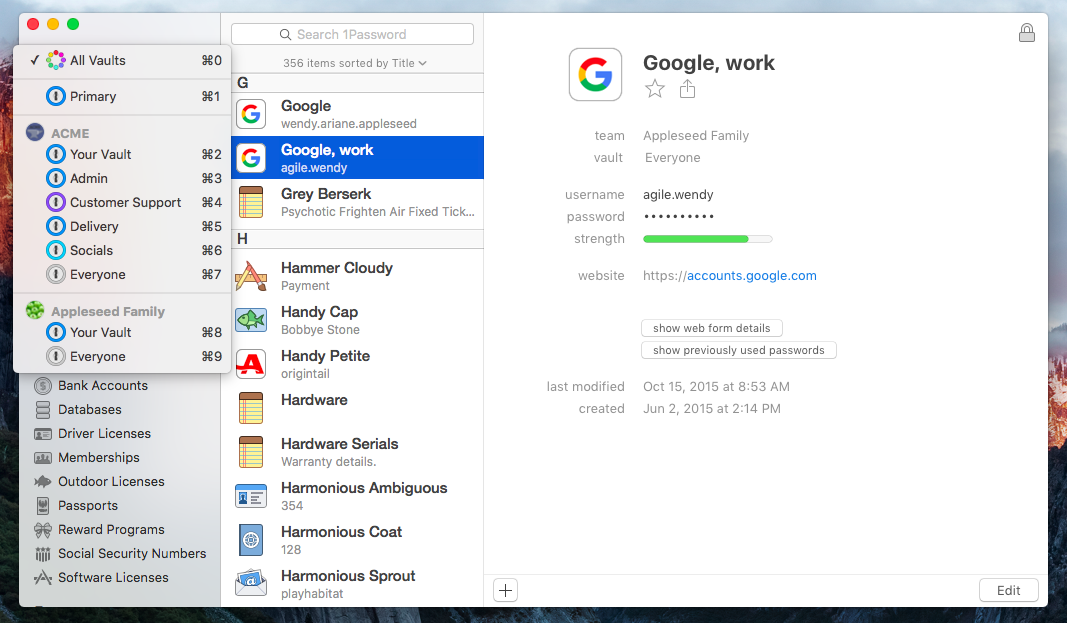
How to Export from Dashlane to 1Password
I’m going to cut to the quick with this one. Last week AgileBits, the company behind popular password manager 1Password, rolled out a new subscription-based service and with it, 6 months of 1Password for free. While I have been a big proponent of Dashlane I’ve noticed that the quality of the service has been steadily decreasing – problems with syncing, crashing, inconsistencies between platforms, and a really, really ugly Windows 10 app. I decided to give 1Password a try, and along with that, export all of my data out of Dashlane. It was an adventure, but with the help of 1Password’s support, I managed. Here’s how.
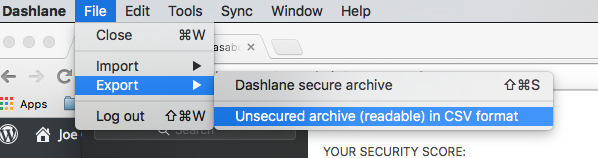
First, to get your data out you can use Dashlane’s Export as CSV feature. Go to File -> Export -> Unsecured archive (readable) in CSV format.
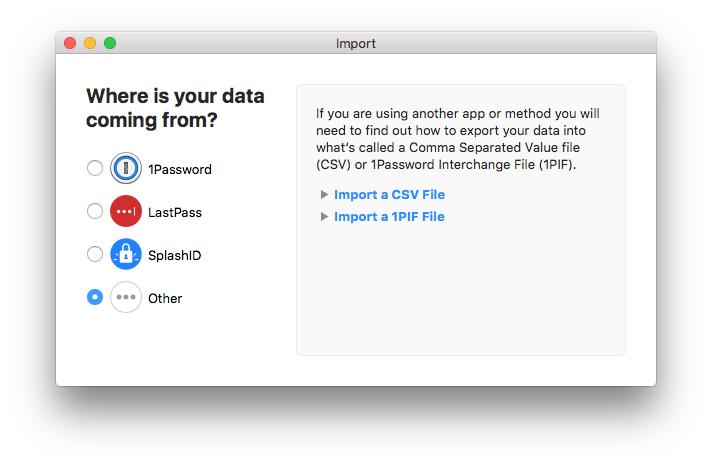
Next, you can try to import it using 1Password’s Import feature. Go to File -> Import. Select Other -> choose the CSV.
What’s the Issue?
It will probably fail, and here’s why: Dashlane’s exported CSV is an unmitigated disaster of data that can’t possibly be organized & read automatically. There are several issues:
- There are no column headings. Zero. Zilch.
- There are no clear sections. Bank info flows right into passwords and other non-password info. Secured notes are not included.
- There is no consistency between rows. Have an email and username associated with a website? Great! The username will be in column C and the email in column D. But if you don’t, the username will be in C and the password in D. Have notes included for a website? They are in a random column too.
- The websites are seemingly listed twice, but one column (A I think) is the title of the website and B is the URL.
- Commas in passwords are not escaped. If your password is
AbC3!,8%?,AbC3!will be in one column and8%?in the next. Pretty neat, right?
The main reason (aside from Dashlane obviously doesn’t want you to leave) is that it’s just a data dump, and probably very similar to how the app stores it; except the app can read the mess.
Fixing the CSV
The good news is this can be fixed without you having to input each website manually. The bad news is it’s still a somewhat manual process to go through the CSV and clean it up. Here’s what I did:
- Open the CSV in Excel (or a spreadsheet program of your choice)
- Delete anything that isn’t a website password. This include personal IDs and bank info. You’ll put that stuff in manually.
- Go through each row and try to make sense of it on a row-by-row basis. I would keep the first username and replace the second with the password, since most passwords were in the same column. If I noticed 2 adjacent columns with random characters, I assumed that was an improperly escaped password and I combined those two fields, adding a comma (,) in between. I also put a column in between the password data and any notes. They might not get imported, but they won’t stop the import either. The goal here is uniformity – 1Password is pretty smart if you give it some clues.
- Delete unused websites along the way. Remove anything that you’d consider clutter – it lowers the chances of the import failing.
- Once the columns are uniform, give them column headings by created a new Row 1. I’m not sure it matters, but I went with: Title – URL – Username – Password – (blank) – Notes
When you save the CSV, save it as an MS-DOS CSV. Once you do this, try the import again. This time around, it might work! I did for me. If it doesn’t, try a subset of the passwords (15 or fewer) and see what happens. Look for clues in the error message 1Password spits out.
If all else fail’s 1Password’s support is really good. If you have any more tips, feel free to leave them in the comments!

How have you found 1Password compared to Dashlane? Any specifics you prefer? Thanks for guide.
So far I really like 1Password. The interface is much nicer and it’s less obtrustive than Dashlane. The Dashlane autologin function is nice but I noticed I only wanted it like 50% of the time. 1Password allows you to map a keyboard shortcut for the same effect, without the butting in.
I agree with Joe’s reply to Elliot Taylor, plus the support people are much more helpful at 1Password and they reply much faster than Dashlane. When I emailed Dashlane with a problem, they did not take the time to answer my specific question; instead they threw out references to their online help section – – which I had already studied but did not find an answer. So I would always have to write a second time and wait another day or two for another impersonal reply. 1Password is more actively engaged in assisting their users.
Thanks for the clear instructions. You’re right, it’s not difficult, but it is time consuming.
Conversion instructions: I had to restart conversion from DashLane to 1Password when certain fields got out of whack. I believe the problem was caused by deleting and “shifting up” rather than selecting the option to delete the entire row. A simple fix, but worth noting. Also, you don’t need to name the columns.
Reason to convert to 1Password: DashLane has become quite buggy since the latest MacOS update. Previously, the only major shortcome that I noticed with DashLane was that it had a hard time handling certain website’s login procedures. Now, DashLane is so buggy that I’m spending $$ to purchase DashLane for my Mac and my mobile devices.
Having major problems here with Dashlane in Win10 as a dll seems to have vanished overnight. I suspect an update is screwed. Support answered fairly fast when I posted the entire mess on their Facebook page.
I have now uninstalled and reinstalled 7 times.
I have wasted 8 hours so far and it’s still not working.
As much as I like Dashlane I have absolutely zero intentions of putting up with an error box that throws itself into the middle of my screen once every 5 seconds
Aaaargh! 1Password 6 does not yet support importing CSV files.