Today I wanted to do a little show-and-tell for how I’ve been using ChatGPT.
It’s been exclusively through my new favorite Mac App, Raycast. On top of being an app launcher with a bunch if productivity tools built-in, it serves as an interface for ChatGPT.
There are a few different ways you can interact with ChatGPT here, all in the video below!
Imagine being told you need to get your wedding1, and that’s it.
No time. No date. No location. Just, “You need to get to your wedding.”
You’d feel kind of stuck, right? Surely there are people who know that information. You’d think it would be part and parcel with, “You need to get to your wedding.”
That’s kind of how it feels when someone tells you, “You need to automate.”
What should you automate? How should you automate it? How do you know if you can automate it?
Well, there are a number of questions you can ask yourself to figure our what you don’t have to do, but the are also categories of tasks to help you figure out if a task is worth automating.
They are:
Common, easily repeatable tasks
Infrequent tasks that have a high level of effort to do.
January has come and gone, and I’ve made the decision to fully move from Zapier to Make. I’m pleased with the functionality, the workflows, and the considerable cost difference1.
Here are my thoughts after one month with Make:
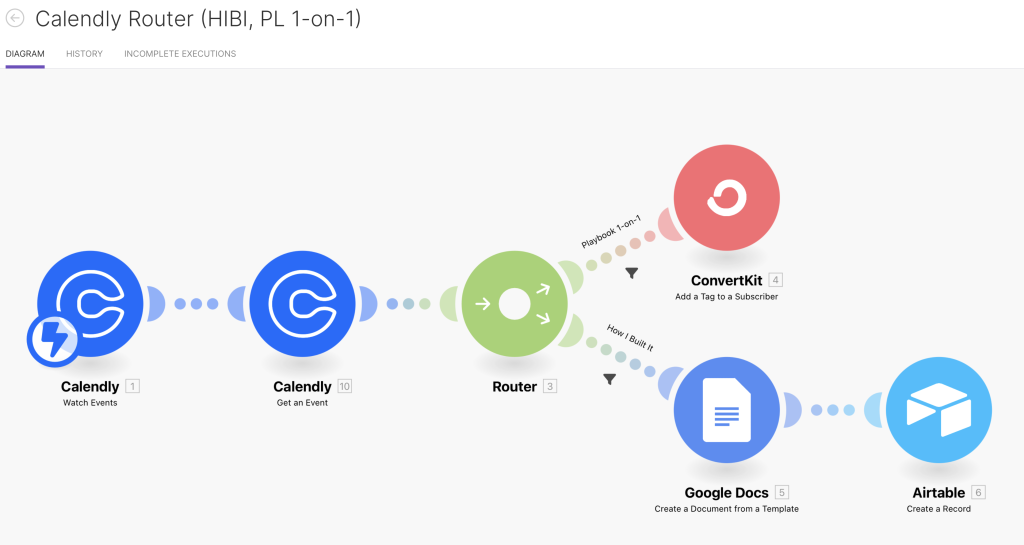
I really love the route building and general design of the scenarios better. The interface is much more intuitive. It’s easier to move things around, insert actions between other actions, create filters, and add routes.
MUCH. Easier.
You do need a little more know-how than with Zapier. Zapier has some tighter integrations with Dropbox and Google. For example, if you want to use your personal Gmail account, you need to spin up an API key for certain actions, instead of just authenticating.
It is a lot more secure though, as you’re not giving complete access to an app. You’re explicitly choosing the services you want the app to have access to.
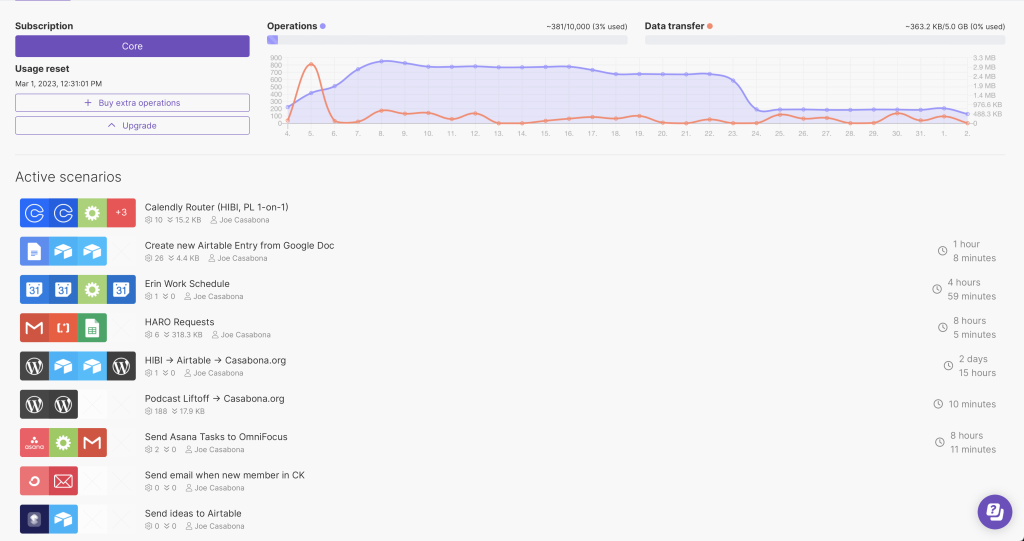
Along what that know-how, you need to be mindful of how often your scenarios run. Since Make charges per operation, you can’t just let your automations run wild. I ended up hitting the 10,000 operation limit within 2 weeks.
Luckily, I was able to dial them back a reasonable amount and now I’m well within the limits of 10,000 operations per month, giving me wiggle room to add even more scenarios. And for what it’s worth, Zapier has this baked into their much higher cost.
The way to manage operations is to not have them run as often. The default is 15 minutes. I have some run every 2 hours, and some that run every 2 days. This is perfectly fine for me. They still run often enough that it doesn’t bottleneck my workflows. The hardest part was coming to terms with knowing they aren’t constantly running.
Make is much more affordable. I’d need to pay for around 90,000 operations to hit the same monthly costs as with Zapier. If I doubled my monthly operations, I’m still saving $55/mo on the billed monthly plan.
Finally, thanks to re-evaluating my automations, I was able to create more efficient actions, as well as move some automations to the native apps. For example, Vimeo has direct integration with Dropbox. I don’t need Make or Zapier as a third party anymore.
If you have any questions about Make, feel free to leave them in the comments!
I got a few people tell me that the time savings is worth the month. My friends, the wealthy didn’t get wealthy by wasting money. And IMO, using Zapier over Make if you have more than 5 automations is a waste of money. ?
I’ve greatly improved my process for creating social media content in a centralized place.
The basic workflow is this:
Create a Google Doc in a folder called “Social Posts”
Kick off a Make automation that watches that folder, and adds a new entry to my “Social Media content” base in Airtable. A schedule date is also determined.
Then my VA goes in and reviews the documents, creating images as needed, and posting them on the scheduled dates.
I’m a huge fan of Airtable; it’s the very basis of my podcast planners. But up until now, I haven’t been using it to its full potential.
I do some cool things, especially when it’s paired with Zapier (soon to be Make), but there are a ton of features I’m not taking advantage of.
This was made incredibly clear to me thanks to two recent experiences:
The first was Justin Moore sharing his sponsor tracker in Notion. I took a look at how he was doing things, and there were some very complex functions in there.
The second is friend Brian Richards. He created an incredible system in Airtable that tracks and building sponsorship packages, leads, and all sorts of other information for his virtual events.
I have a few ideas, one being a content dashboard to track the various pieces of content I’m working on across different platforms and clients.
The other is my own sponsorship tracker; I have some pieces of this already for How I Built It, but I’d like to formalize it better.
Finally, I want to be better at social media this year. Part of that will be posting consistently (and better), and part of it will be bringing in my VA to do more.
I’m excited at the prospect of building better systems to help us work.
If you want to see BTS videos of what I’m working on, you can become a member of How I Built It Pro.
One of my goals has always been to figure out a straight-forward way to connect Zapier and Shortcuts.
One of those ways is Pushcut, via a local automations server it runs constantly on a device. But until today I didn’t have a spare device…so now I’m testing the server.
I’ll report my findings, and likely do a tutorial video for the Creator Crew 🙂
How many typos do you make when you’re writing? How many times do you need to retype emails you’ve already written? Or find URLs, emails, and other information you wish you had readily available? You need a tool to help you manage all of this and save you time. That’s where TextExpander comes in.
If you’re a creator, podcaster, or small business owner, you’re probably a little strapped for time…or at least it can feel like it. And while I highly recommend automating with Zapier or Shortcuts, there’s a much lower barrier for entry: TextExpander.
You’d be surprised how much time keyboard shortcuts for commonly typed text can save you. On-time of actual keystroke hours, I no longer have to hunt for URLs or code, and I don’t have to re-create emails I send regularly. So today, I’m going to show you my favorite ways to use TextExpander.
Back in the summer of 2018, I talked about how I was going to dedicate more time to automation. Since then, I’ve automated significant parts of my business, including guest outreach and booking, project creation, and even workspace configuration.
Now that Shortcuts has reasonably good Mac support, and I have an Apple Silicon Mac, I’m re-evaluating my automation strategy and exploring what more I can do with these tools.