Automation

  • How I Prepped 9+ Piece of Content in 4.5 Hours

    In preparation for a recent vacation, I recorded and wrote a bunch of content to schedule in my absence.

    Today, I want to share with you how I churned out 9+ pieces of content over the course of 4.5 hours.

    Here’s the output:

    1. 3 YouTube videos
    2. 3 podcast episodes from those videos
    3. 1 blog posts
    4. 1 live stream
    5. 1 short form video
    6. Audio of live stream republished to a podcast feed

    And here are the tools I used:

  • Moving my Podcast Process to Notion from Airtable

    I’ve begun the process of moving my entire operation from Airtable to Notion, and while most of it has been smooth sailing, soon I’m starting what will likely be the most difficult move: my podcast production process.

    I’ve walked through various parts of the process, like booking guests, but Airtable is basically the brain of the operation, touching every part of the episode’s journey.

    So I’ve decided to do some pre-planning, and share with you what I’m thinking. Here’s the video walk through:

  • Exploring Calendar Scheduling Alternatives

    I’ve faced a few calendar-related frustrations this week, from not realizing meetings were declined, to wanting to set up a Calendly link that added a meeting to something other than my default calendar.

    Turns out you can’t do that in Calendly.

    In-fact, I’ve been increasing disappointed in what Calendly does vs. what alternatives to.

    So I might be switching — here’s what I’m thinking, some of the hurdles I’d have to overcome, and the temporary solution.

    SavvyCal has become a much better contender since I last wrote about it. They’ve gotten better Zapier support, their own Workflows, and post-event emails.

    They also have direct integration with SquadCast, which is something I’ll very likely end up switching to in the coming weeks. That’s a big plus.

    They also let you choose, per event type, what calendar a meeting is added to. That’s a solution to a frustration I had earlier this week.

    I want my compatriots at RSS.com to be able to grab a time on my calendar, and have it added to my RSS.com calendar. With Calendly, you can only add events to the default account (which is one of several dumb, limiting things).

    So +2 for SavvyCal there!

    However, they don’t have Make.com integration yet — which brings me to the biggest hurdles.

    I have a lot of technical debt with Calendly.

    I have a whole “Calendly routing” automation in Make that I’d have to rebuild somewhere else.

    But also, when someone fills out my guest form, I save that info in my database, and pass it along to Calendly — so I’d have to rebuild those links. Something that’s doable, but time consuming.

    …not to mention all of the time I’ll have to spend rebuilding my events.

    So what should I do?

    Well, I will spend $15 to evaluate SavvyCal and see if they’re worth switching to.

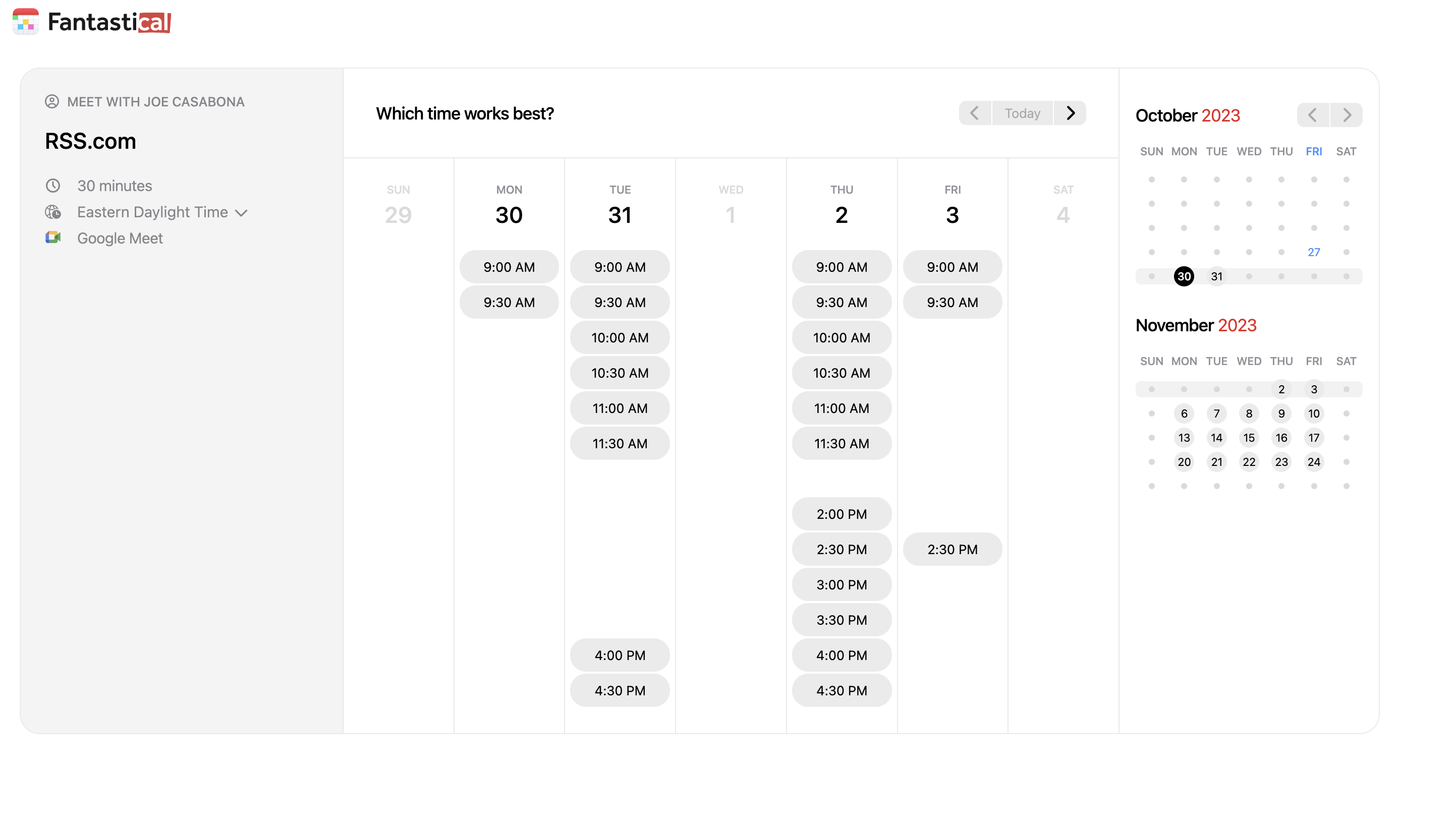
    But in the meantime, I think I have a decent solution — all thanks to Fantastical.

    They have a feature called “Openings,” which until this point I thought was kind of pointless, as I also pay for Calendly.

    BUT, they have a scheduling feature that actually allows me to add events to a specific calendar.

    It’s super clean, and I only need it for scheduling.

    Yet another reason Fantastical is well worth the money for me.

    So I called this a temporary fix — but given how much work it would be to switch to SavvyCal, it’s likely this will be the long-term fix.

    Unless SavvyCal makes a very compelling argument.

  • SOP for Publishing my Daily, Mini Podcast

    I like to imagine that when Thomas Jefferson finished writing the Declaration of Independence, he sat back in the swivel chair he invented, smiled, and sighed a big sign of relieve.

    The same thing goes for when Walter Cronkite finished his first TV broadcast, JK Rowling finished Harry Potter and the Goblet of Fire, and Simone Biles stuck the landing in her last Olympic gold medal performance.

    Not that anything I’ve done is anywhere close to the same level of any of those things…but I’ve finally done it. I hit the proverbial “publish” button on my new daily podcast.

    I’ve been sitting on it for a while, saying that it’s not as good as I’d like it to be. That I don’t have as many episodes banked as I’d like. That I don’t have a rock solid process in place.

    All of those are poor excuses though. I so I finally hit publish.

    It starts Monday, October 2nd, a week where I’ll be away at a conference called CaboPress.

    …not that it matters much, because I have a whole process in place that I’m going to share with you — how I started, and where I’ll go from here.

    I also have some announcements about the membership at the end!

  • Using a Mac mini as an Automation Server

    A warm welcome to Sheryl and Scott, our newest members!

    One of my biggest frustrations as an automator is reconciling iOS — my preferred mobile platform — with web apps. I wrote about it at the beginning of the month.

    Since then, I learned that Pushcuts, an iOS/iPadOS app that deftly bridges this gap, but requires you to have an always on device, has a macOS version in beta…and I got access.

    Hot Dog.

    So I decided to make a new purchase: a refurbished, base model Mac mini for the low, low price of $500. It will be mostly headless (that is no peripherals attached to it), and act as a task server for me.

    Here’s how I plan on making it work.

    There are a few important components:

    1. Luna Display: before Apple rolled out Universal Control, I was using Luna Display to create a second monitor for my laptop out of an iPad. Now, they’ve added support to access one Mac from another Mac.
    2. Homebridge: an app that adds non-HomeKit devices to Apple’s Home app. That was running on a single-purpose Raspberry Pi until Wednesday, when the Mac mini arrived.
    3. Pushcut for macOS Beta: This will allow me to execute shortcuts from the web, as well as send data from shortcuts to the web. Use cases below

    The Luna Display is what allows me to keep the Mac mini “headless.” I don’t need to have a monitor, mouse, or keyboard always connected to it because it borrows them from the connecting device — which in most cases is my Mac Studio.

    Homebridge will be doing much of what it did before. Allow me to automate the Elgato Keylights in my office. But now that I have more storage and resources available, I may look into other interesting uses.

    I might, for example, be able to have it look at my calendar, see when I’m recording, and turn on my recording light automatically.

    The app is a little Wild West, and I’d like to do some more research before experimenting though.

    The real magic will happen with Pushcuts, though. This app enables me to trigger Shortcuts without having to interact with my device. It also allows me to send data from the web to shortcuts — meaning that I can leverage apps that don’t have Shortcuts support, but do have Zapier or Make support.

    So I could theoretically have tasks sent from Notion to Omnifocus with proper tagging and in the right project, instead of just in the Omnifocus Inbox.

    I could also use the share sheet to send interesting links to Make, summarize them with ChatGPT, and then insert them into a Notion database.

    In short, Pushcuts combines the power of Zapier/Make, and Shortcuts, allowing me to automate just about anything.

    Where this can help podcasters is with idea capture, and potentially social sharing and promotion. This is an area I’m very interested in exploring.

    It might also be leveraged to make editing easier…

    So where am I in the process, and what can you expect from this grand experiment?

    The Mac mini is pretty much setup at this point — I just need to configure Pushcuts and make sure the apps I want to use are on the device.

    From there, I’ll likely live stream and/or write about what I’m doing.

    One big benefit of the membership moving forward will be monthly workshops (pre-recorded or live, depending on demand/logistics) where I show my work — and teach you how you can add it to your workflow.

    But that’s not the only thing that’s changing.

    I’ll have more on this next week, but the membership is moving to a single price. Right now that price is $25/mo or $250/year.

    It will likely go up one more time.

    However, if you have paid a different price, you’re locked into that price as long as you’re a member.

    I’ve been hinting at changes for a few weeks now, and I’m almost ready to roll them out.

    What you should know for now is your price isn’t going up so long as you remain a member, and you’re going to get more video content focused on podcast automation and processes.

    Thanks so much for your continued support so far. I deeply appreciate you!
  • Automating Lead Tracking with Calendly and Notion

    Since writing to you about me not using Notion, I’ve been using Notion.

    A lot.

    Something weird clicked for me a couple of weeks into using it, and I “get” how it works a little better (shout out to my friend Cat Mulvihill for her help there).

    So I’ve been using it for Cashflow tracking, products, family stuff (where I invited my wife as a guest to that page/database), and my sales funnel.

    I’ve never been much of CRM guy, so this feels like a game changer.

    Here’s how it works.

    So a couple of things:

    1. I created a new Database in Notion. That’s one of the few things you can really manipulate from the outside.
    2. I had to make sure that Make.com had access to that “page.” 1
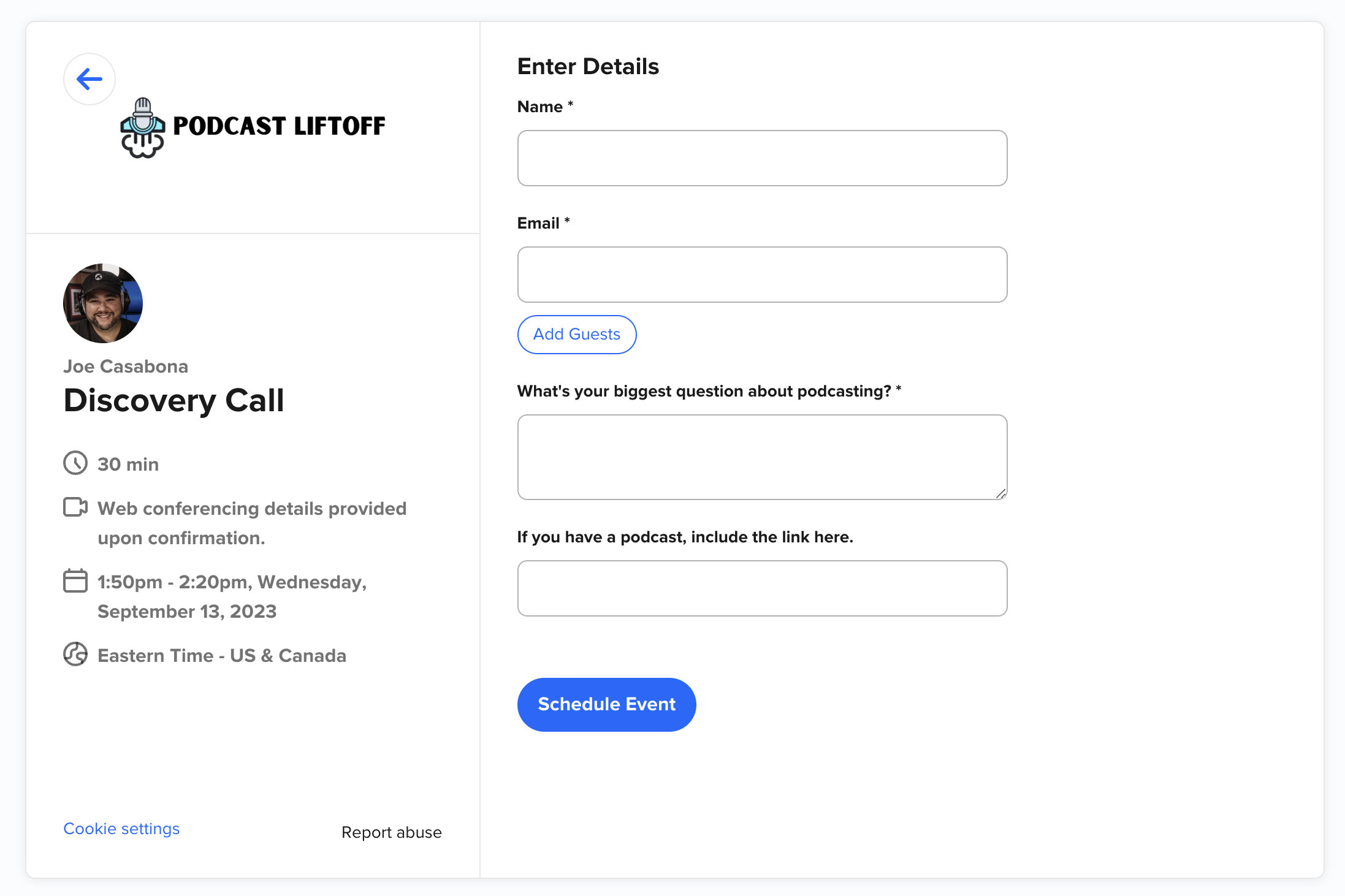
    3. I have a Calendly event type called “Discovery Call”

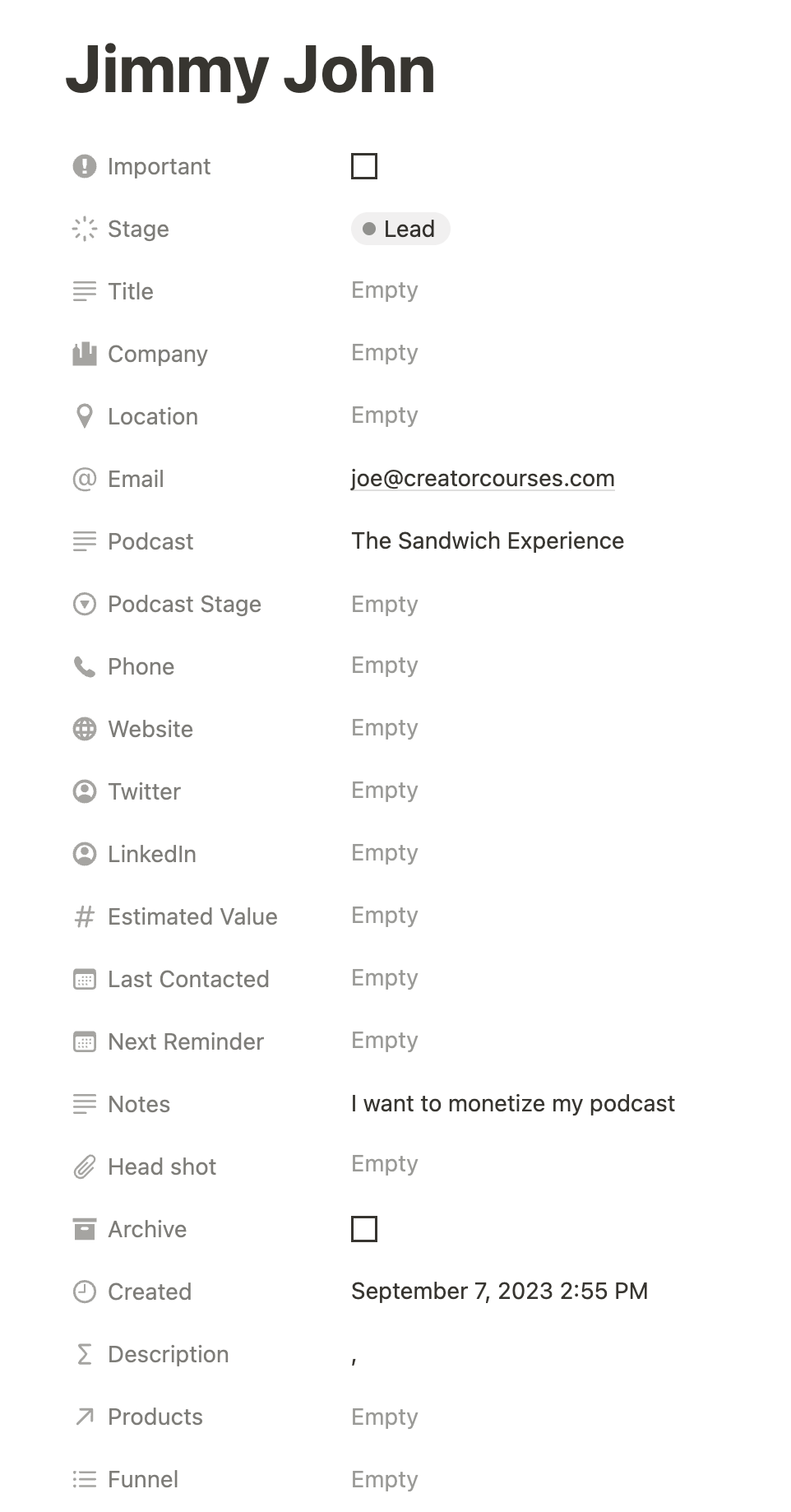
    Here’s the database in Notion:

    I also have a Kanban view of this, organized by Stage. There’s a TON of info I’m tracking in it, but what I like about having it in Notion is I can hide most of that info in views, and I can take notes directly on the entry.

    This is actually one huge place Airtable falls down — it’s terrible for keeping even basic notes. And that’s fine because Airtable knows who it is — but it’s also why I’m using Notion for this particular thing.

    Now let’s get to the actual automation:

    I call this my Calendly Router. I have different actions depending on the event name — including one for my entire podcast guest booking automation.

    But the one of interest here is the bottom branch in the screenshot. There, if someone uses the “Discovery Call” event, they get sent to Notion as a “lead.” I’ll move them to prospect after the call if there’s interest in working together.

    The information I grab is pretty sparse:

    But that info does get mapped to properties in the database:

    I’ve had this in place for a few days and I’m pleased with how it’s working.

    The last thing worth mentioning is that I also have a Products Database, so I’ve created a relation to the CRM, where I can track products my leads are interested in.

    This sort of long-term data will help me determine what’s interesting to folks, and what’s not.

    There are 3 big improvements I want to make though:

    1/ This automation should probably be the default state for my Calendly router. That means if there’s no specific route for an event name, it defaults to the Notion CRM. Considering most of my calls from calendly are some sort of lead, it makes sense.

    2/ I want to make it so that if there’s already an entry for a person (probably by email address), the entry just gets updated to include the next meeting time. That way, I can add a bunch of info before they book — which is why my remote assistant, Jordan, is doing.

    3/ I want to track where leads come from. There’s already a field for this, but I’d like some custom calendars or a hidden field to pass along to Notion so I don’t have to guess.

    As an aside, these sound like perfect things to do via Live Stream. I definitely want to bring those back, and now that the school year started, it will be easier for me to be more consistent.

    What do you think? Are you using Notion? Have your own CRM? I’m definitely still looking for tips and tricks! Feel free to send them along.

    1. I’ll leave that opinion for a different newsletter. ?
  • Why I Continue to Choose Airtable Over Notion

    I’ve been using Notion more thanks to a little in-person Mastermind I’m planning with friends; to be honest, it’s pretty nice.

    I don’t really know my way around Notion, but the co-organizer who set it up absolutely does, and it looks really fantastic. In fact, this is the closest I’ve come to wanting to use it more.

    That said, there’s a few reasons why I still continue to choose Airtable over Notion. Don’t worry though, my Notion-loving friends; stick around until the end and I’ll tell you how I can see myself using Notion.

  • How to Easily Search Your Tweets in Chrome

    Since moving back to Chrome, I’ve missed some of my custom searches in the Keyword Search extension for Safari, despite having the same support in TextExpander. It just didn’t feel as fast as native browser support.

    Luckily, Chrome’s search shortcuts are fantastic and super easy to manage from chrome://settings/searchEngines1.

    Did you know you can do this basically any website and combination of search terms?

    One I set up recently was for my own tweets. Here’s how it’s done.

    After you click on the link above (chrome://settings/searchEngines), add a new Site search:

    Note: Clicking the link doesn’t always work. Copy and paste this into the URL bar: chrome://settings/searchEngines

    Then fill out the pop up with the following info:

    I made the shortcut tw for Twitter. Use whatever you’d like!

    The URL you need to list is:

    https://twitter.com/search?q=%s%20(from%3AYOURUSERNAME)&src=typed_query&f=live

    Just make sure to replace YOURUSERNAME with your Twitter handle.

    Then click “Add.”

    After that, you should be able to use the the shortcut you chose in the Chrome search bar:

    …and the results:

    That’s it! Happy searching!

    1. This link will only work if you’re in Chrome right now. ?
  • How I Quickly Break Up my Podcast Audit Videos

    I have a confession to make, friend.

    I’m a little under water right now. Between sick, travel, vacation, and other summer things, I haven’t be able to write as much as I’d like for this newsletter. I plan on doing much more (including giving you those shortcuts I promised last week).

    Whenever I get under water, I know something needs to be fixed.

    So for this week’s member’s newsletter, I’d like to share two things:

    1. What’s been going on in the business, automation and delegation-wise
    2. A process I have for quickly chopping up videos and sharing them on Twitter and YouTube.
  • Automatically Sending Tasks in Bear Notes to Todoist

    There were two notable things I did this weekend: spend it with my kids, as it was my wife’s weekend to work (she’s a nurse and must work one weekend per month), and build a series of clever automations using Apple’s Shortcuts app.

    I love using the Bear Notes app for most things, like quickly logging tasks. This includes my 5 Critical Actions for the week, and any open threads I have at the end of the day*.

    But Todoist is my main task manager, with reminders, subtasks, and the whole 9 yards.

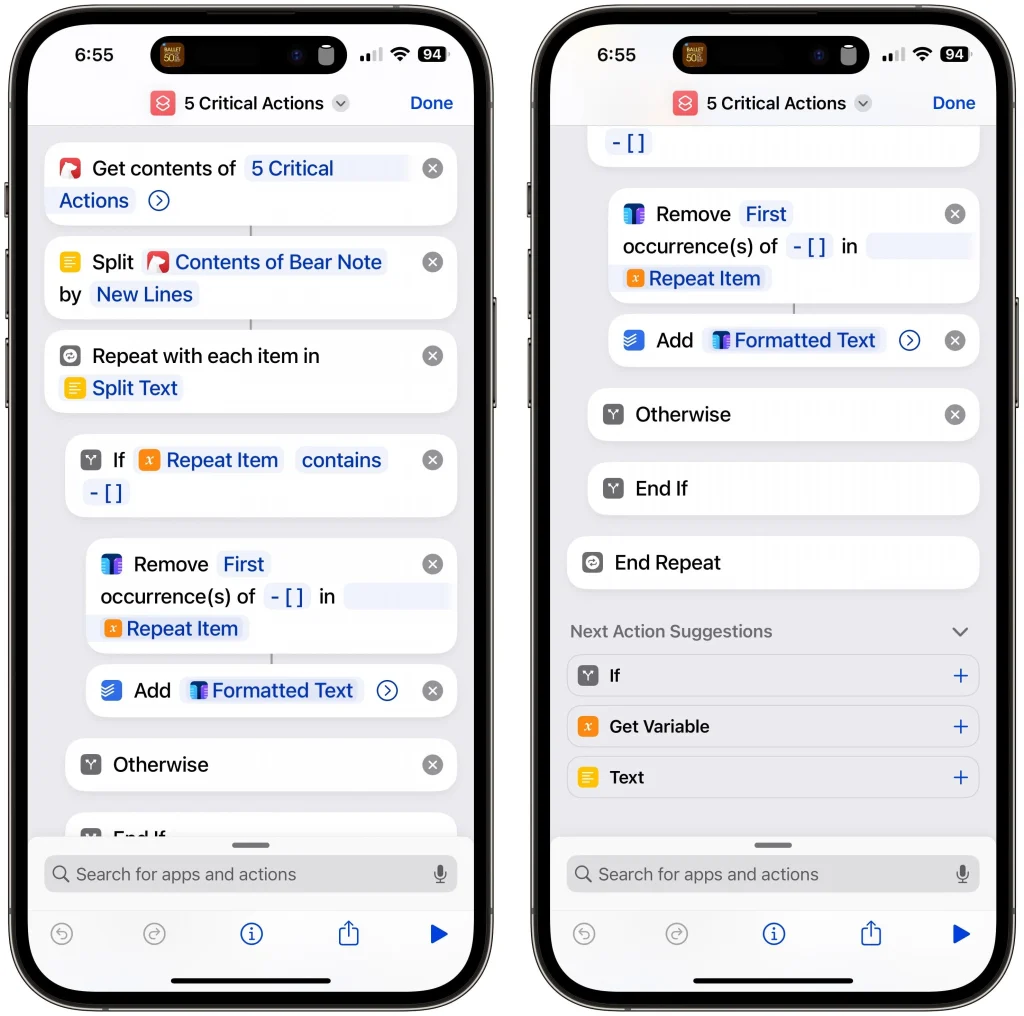
    So I ended up building 3 Shortcuts to send tasks from Bear to Todoist:

    1. Process tasks specifically in the 5 Critical Actions note. I did this so I can properly label the tasks as such…Todoist doesn’t let you create create labels on the fly.
    2. Process any note via the Share Sheet
    3. Process every note, looking for tasks in all of them, and creating the tasks plus a link back to the original note for context.

    I’ll share the first one with you here…the other two are reserved for members.