Managing Subscriptions with GMail
|

Quick Tip: Managing Subscriptions with Gmail

Note: This article was published while I was in my early 20s. I was much younger and dumber. Please don't hold it against me. One of the perils of having a 20+ year old website!

It’s likely that you have several subscriptions to newsletters and email blasts from various websites. And if you’re anything like me, you don’t like a lot of things cluttering your inbox. Today I will tell you how to use Gmail to manage your subscriptions.

Using the + Sign

A nice built-in feature of Gmail is that you can append anything to your email address by adding a plus sign (+) to it. For example, if I want to keep track of all my client emails, I could give them the email address myemail+clients@gmail.com and it will get sent to my Gmail inbox.

With that in mind, whenever I sign up for a newsletter or email blast, I use myemail+subscriptions@gmail.com.

You can then use Filters in GMail to route emails sent specifically to those addresses to other folders, or even straight to trash!

How to Set It Up

To manage these subscriptions, in Gmail do the following:

Gmail Settings: Cog with the Settings Area
Cog with the Settings Area
  1. Click on the Cog on the right
  2. Select Settings -> Labels and create a new label called “Subscriptions”
  3. Click on the Filters and Blocked Addresses tab and scroll to the bottom. Click on “Create a new filter”
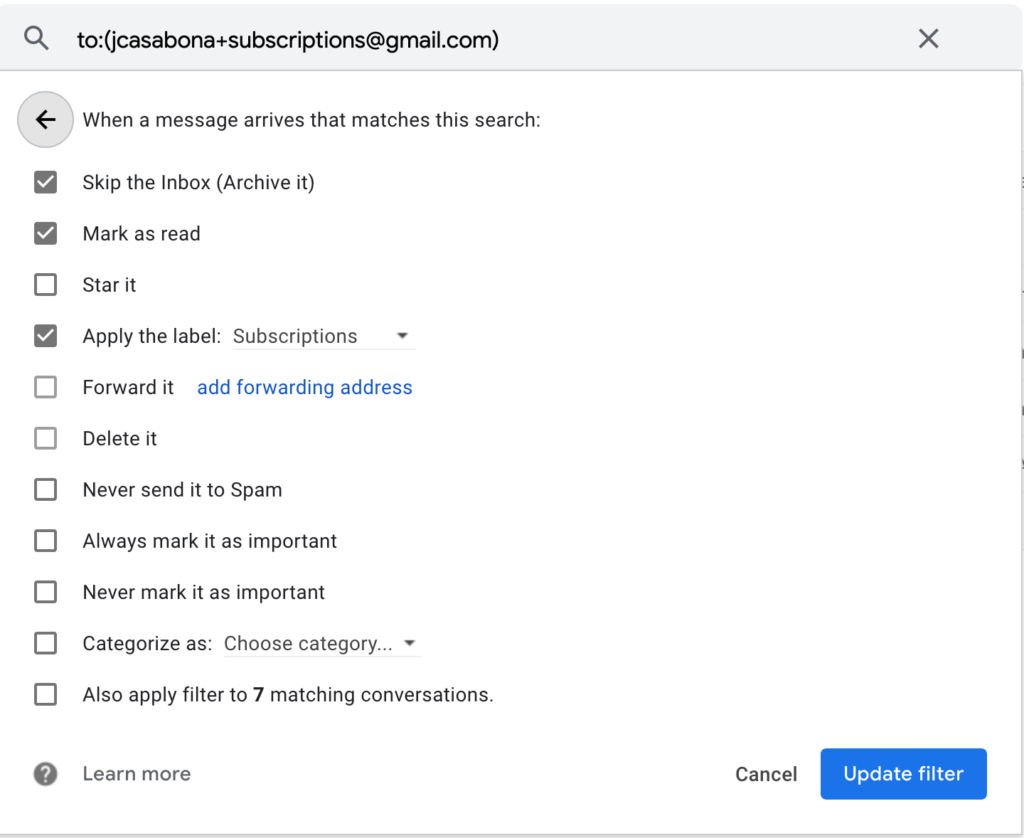
  4. In the “To” field of the “Create a Filter” box, put your email address with “+subscriptions” after the username (IE youremail+subscriptions@gmail.com)
  5. Click Next Step
  6. In the check boxes, select “Skip Inbox” and “Apply label,” then select “Subscriptions” from the drop down box.
  7. Click “Create Filter”
Gmail Subscriptions Filter

You’re All Set!

Now you won’t have your email subscriptions filling up your inbox, but kept in one spot for you to review when you’d like. Just remember to sign up for them with your ‘new’ Gmail address!

Similar Posts

  • Exploring Calendar Scheduling Alternatives

    I’ve faced a few calendar-related frustrations this week, from not realizing meetings were declined, to wanting to set up a Calendly link that added a meeting to something other than my default calendar. Turns out you can’t do that in Calendly. In-fact, I’ve been increasing disappointed in what Calendly does vs. what alternatives to. So…

  • | |

    The Business: Document Tools

    Note: This article was published while I was in my early 20s. I was much younger and dumber. Please don’t hold it against me. One of the perils of having a 20+ year old website! Hands down the best tool for documents is Google Docs & Spreadsheets. With Microsoft Office support and the ability to…

  • |

    Quick Tip: Get a Family Cell Phone Plan to Save Money

    Note: This article was published while I was in my early 20s. I was much younger and dumber. Please don’t hold it against me. One of the perils of having a 20+ year old website!I was talking to a friend yesterday who told me his parents booted him and his brother off their family plan…

  • | |

    Manifest Development Redesign 2011: The Homepage

    Note: This article was published while I was in my early 20s. I was much younger and dumber. Please don’t hold it against me. One of the perils of having a 20+ year old website![singlepic id=7 w=320 h=240 float=right] Last week I launched a redesign of my freelance site, Manifest Development. I started developing it in…

  • | |

    Great Tech Gifts 2010

    Note: This article was published while I was in my early 20s. I was much younger and dumber. Please don’t hold it against me. One of the perils of having a 20+ year old website!This is something I’ve wanted to become more consistent with, as I usually post these lists sporadically and at poor times….