

Get Your Inbox Under Control (Automatically) with SaneBox
Full Disclosure: SaneBox is a sponsor of my podcast, but boy do I love this tool.
Have you ever seen someone’s phone and noticed an email notification badge with a 4 digit number (OR ARE YOU THAT PERSON)? It makes my skin crawl! My inbox serves as a todo list for me, so a lot of email in my inbox gives me agita (a word we Italians use for “stress” or “anxiety”). Even with the way I manage email, I feel like I saw too much. I was distracted by it too much. I wasted too much time. Until I started using SaneBox.
Too Much Distraction
If you asked me to name the single biggest workplace time-waster, I don’t even have to think about it: the answer is email. I mean, there’s this stat: almost 50% of the time that managers spend tending to their inboxes is spent on emails that should have never been sent to them or that didn’t need an answer.
But there’s also the distraction of your email staring you in the face. But what if you could just press a magic button and never see those time-wasting emails again? That’s where SaneBox comes in.
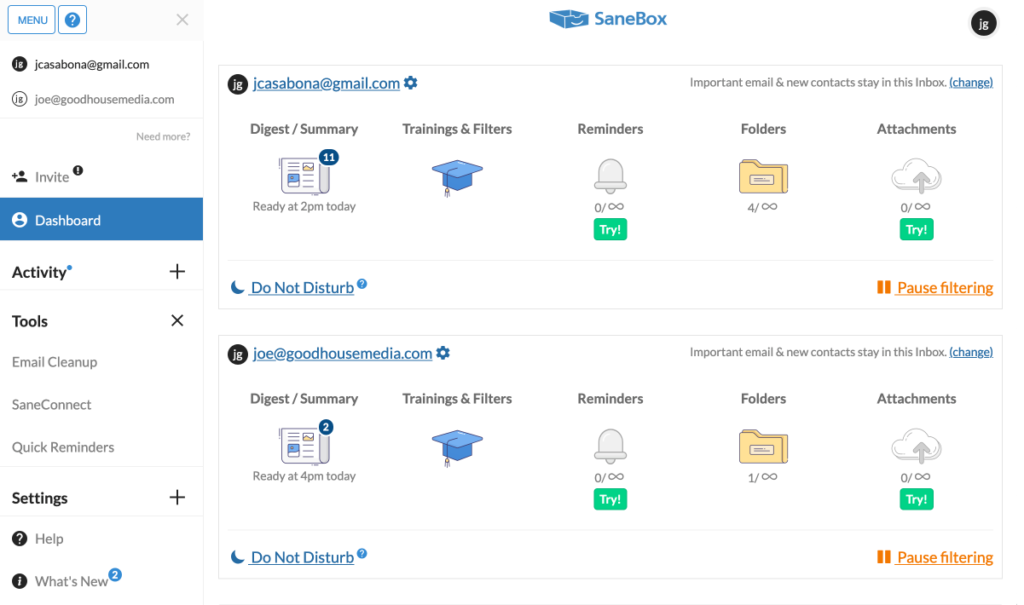
Automate Email Management with SaneBox
Once you sign up for SaneBox and connect it to your email account, it will automatically filters your email based on your input. Plus, you don’t even have to switch email apps, because it works in concert with whichever email client you already use. This is great because I’ve been in search for the “perfect” email app for a long time, and SaneBox has a large amount of the features I want, like Do Not Disturb, Snooze, and Reminders. I use it with Spark and it’s so, so good.
I’ve been using it for a few months now and I immediately saw big changes in the way I manage my email. I no longer get distracted by every little thing that comes into the Inbox. I only see the important stuff, until I choose to look at the other folders.
Training SaneBox
One of the things I like best about SaneBox is how you can ease your way into it and train SaneBox as you go. I was a little nervous handing the keys to my email over to this automated service, so I started slow, only using a couple of the recommended folders (like SaneNews, for newsletters). But over time, I started training it by dragging emails into the other folders they offer, like SaneLater, for non-important emails. I love it.
This is especially great on my iOS devices, because I don’t see any of the Sane folders – just my inbox – so I’m less distracted by my email while I’m away from the computer. And while I don’t have email notifications on, if you do this will significantly reduce the number of notifications you get.
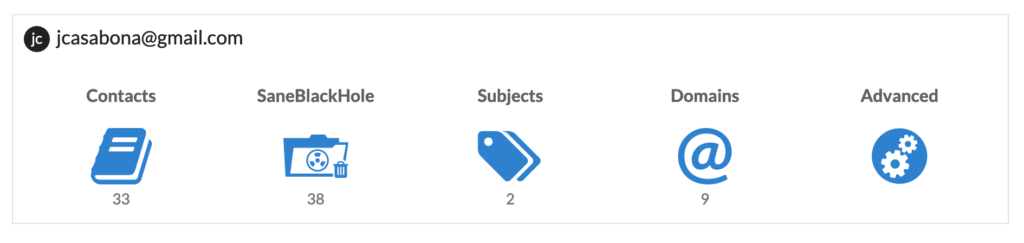
You can also train it based on domain and subject, and set up auto-responders based on filters. There are reminders for when emails haven’t been responded too, and so much more.
My Favorite Feature: SaneBlackHole
It also has some nifty features like the SaneBlackHole, where you can vanquish senders you never want to hear from again. I’m unapologetic about that button. If I get emails from solicitors I’ve asked to stop emailing me, or even companies that can’t respect the unsubscribe button, they go into the Black Hole (and Spam, just to be super-duper sure).
Plus, I created my own filter called SaneMoney, where all online orders and banking info goes. If I ever need to check the status of an order, find a receipt, or anything else money related, I know it’s all there.
Getting Started with SaneBox
Look, we’re all distracted by email, but if you’re like me, you don’t want to straight up ignore it all day. SaneBox has given me the perfect balance between properly managing email and attending to the important stuff.
You can get a free 2-week trial and $25 credit towards your subscription if you visit this link.
How do you manage email? Let me know in the comments!