Automatically Sending Tasks in Bear Notes to Todoist
There were two notable things I did this weekend: spend it with my kids, as it was my wife’s weekend to work (she’s a nurse and must work one weekend per month), and build a series of clever automations using Apple’s Shortcuts app.
I love using the Bear Notes app for most things, like quickly logging tasks. This includes my 5 Critical Actions for the week, and any open threads I have at the end of the day*.
But Todoist is my main task manager, with reminders, subtasks, and the whole 9 yards.
So I ended up building 3 Shortcuts to send tasks from Bear to Todoist:
- Process tasks specifically in the 5 Critical Actions note. I did this so I can properly label the tasks as such…Todoist doesn’t let you create create labels on the fly.
- Process any note via the Share Sheet
- Process every note, looking for tasks in all of them, and creating the tasks plus a link back to the original note for context.
I’ll share the first one with you here…the other two are reserved for members.
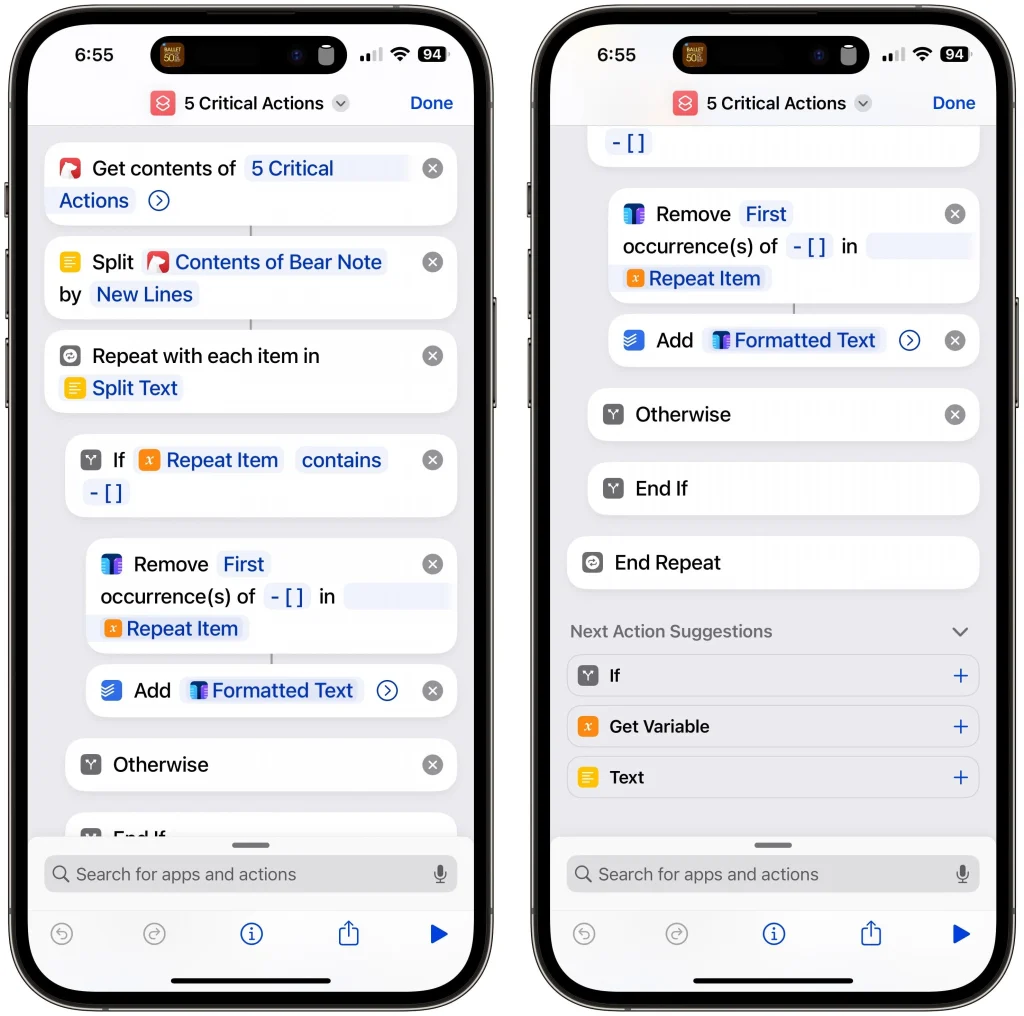
Here are the Steps:
- Get the contents of the 5 Critical Actions note (you can replace this with the title of any note).
- Split the note’s contents by new line.
- For each line in the note, do the following:
- Look for the characters
- [ ]at the beginning. Bear converts this into a tick box in app, representing a task. - If it exists, remove it, leaving only the task itself.
- Add the task to Todoist, with the label 5-Critial-Action
- Look for the characters
That’s it! I’m using Text Case to actually format the text to remove the
- [ ]. That is a free, tip-supported app.
How it Works
Get contents is a built-in Bear action, but you likely do this with any notes app. Apple Notes, for instances, returns the contents of a note when you search.
Split allows you to break up the contents by some delimiter (or marker). In my case, I did it by new line, but you could do it by any character. This allows me to look at each line individually.
Since I only want to add tasks, I search for the characters I mentioned. This prevents contextual text or footnotes from getting added to Todoist.
Todoist’s (iOS-only) shortcuts allow you to set a label, priority, and more, allowing me to use a label specific to the note:

Unfortunately, Todoist doesn’t let you create labels on the fly.
No Improvements
This is one of the rare automations I built that I don’t feel needs any improvements — but that’s mostly because it’s limited in scope to one note.
As I mentioned earlier, I have 2 other shortcuts to do more advanced stuff, which greatly improve upon the shortcut outlined here.
But you can definitely use those one as a template for your own. Split and Text Case are both worth understanding if you’re going to make your own shortcuts.