
Simplifying my iPhone Home Screen
Since widgets came out with iOS 15, I’ve been obsessed with finding the right amount of information to fit on that screen…the perfect combo of accessibility and glanceability.
I had multiple pages, customizable by focus modes, with widgets galore…until a few days ago.
I came to a realization that I wasn’t using most of the widgets and the multiple pages made it harder for me to find what I wanted quickly.
So I decided to do 2 things:
- Simplify my home screens to be 1 page + the App Library1
- Make use of the hidden “Today” screen for widgets I want to reference or use but don’t always want to see.
The result is this:

The left shows the Today screen, which includes the big calendar widget with all of my appointments and such. It also includes:
- Drafts’ quick actions widget for fast input
- A shortcuts widget for commonly used shortcuts I don’t keep on my Home Screen.
- And then below the fold, a number of Home+ widgets for controlling my home and scenes.
The right show’s my sole Home Screen page, which includes:
- A medium widget stack with CARROT Weather, another calendar widget with just the date and upcoming appointments, and recent Drafts
- A small widget stack with links to my Dashboard and the Today note in Craft
- A small widget stack with Apple Music and Overcast.
The icons, from top to bottom and left to right are:
- The Phone
- PCalc (the best calculator app)
- The “I have an idea” shortcut, which takes text or voice input and adds a Draft and a note to Craft
- The “Read” shortcut, which gives me a list of reading apps, including Reader by Readies, Substack, Kindle, News, and a link to my unsorted notes in Craft
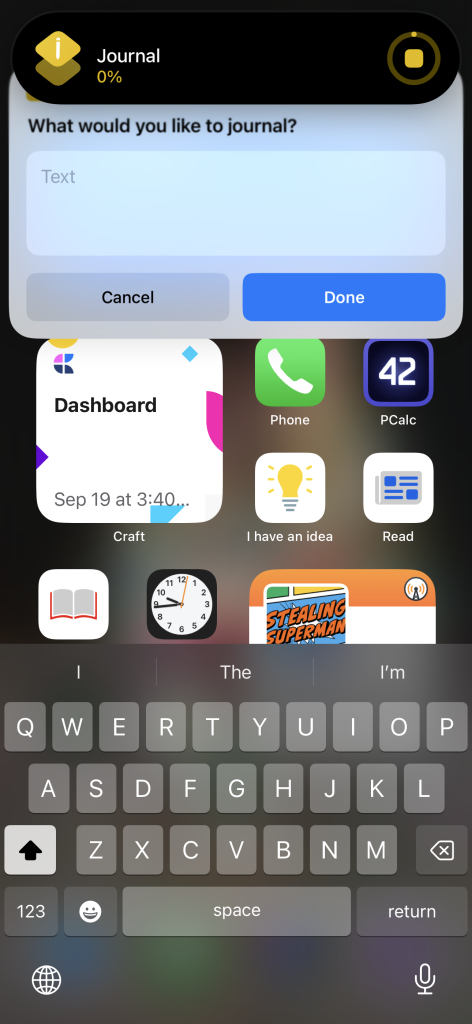
- The “Journal” shortcut, which takes text or voice input and adds a bullet item to my today note in Craft2
- The Clock app, so I can see the time down to the second.
- The “Add Task” shortcut, which creates a new task in Omnifocus
- The “Money” shortcut, which gives me a list of all the financial apps I check each morning
And then the dock: Safari, Messages, Craft, Omnifocus.
A couple of bonus screenshots:


I’d love to know: what does your iPhone home screen look like? Do you use widgets? And what about the Lock Screen?
